

A clearer voice for your story

Voiceover Audio Enhancer for Clearer Narration

Use Voiceover Audio Enhancer to reduce background noise in the narration you have already recorded. Compare the result and bring a clearer spoken track into your next video, lesson, or explainer.

Choose your voiceover audio

MP3, WAV, M4A, AAC

Ready to enhance

Choose a voiceover file to start

Speech enhancement

Voiceover Audio Enhancer playback

Compare your original and enhanced narration

Speech-focused enhancement

Choose a voiceover file to start

Reduce noise

Clarify narration

Export WAV

Start with a spoken take. Voiceover Audio Enhancer lets you listen before you download.

From a spoken take to the next edit

Let the narration carry the story.

Voiceover Audio Enhancer fits the moments between recording your words and putting them into a finished piece.

An expressive woman telling a story beside a rain-streaked city window at blue hour

01 / LESS ROOM NOISE

Give your words room to be heard.

A fan, low hiss, or everyday room noise can follow a good take into the edit. Voiceover Audio Enhancer reduces distracting background noise in spoken recordings so your narration is easier to follow.

Try Voiceover Audio Enhancer on a home-recorded take; heavy echo or badly distorted words may remain unclear.

Try Voiceover Audio Enhancer
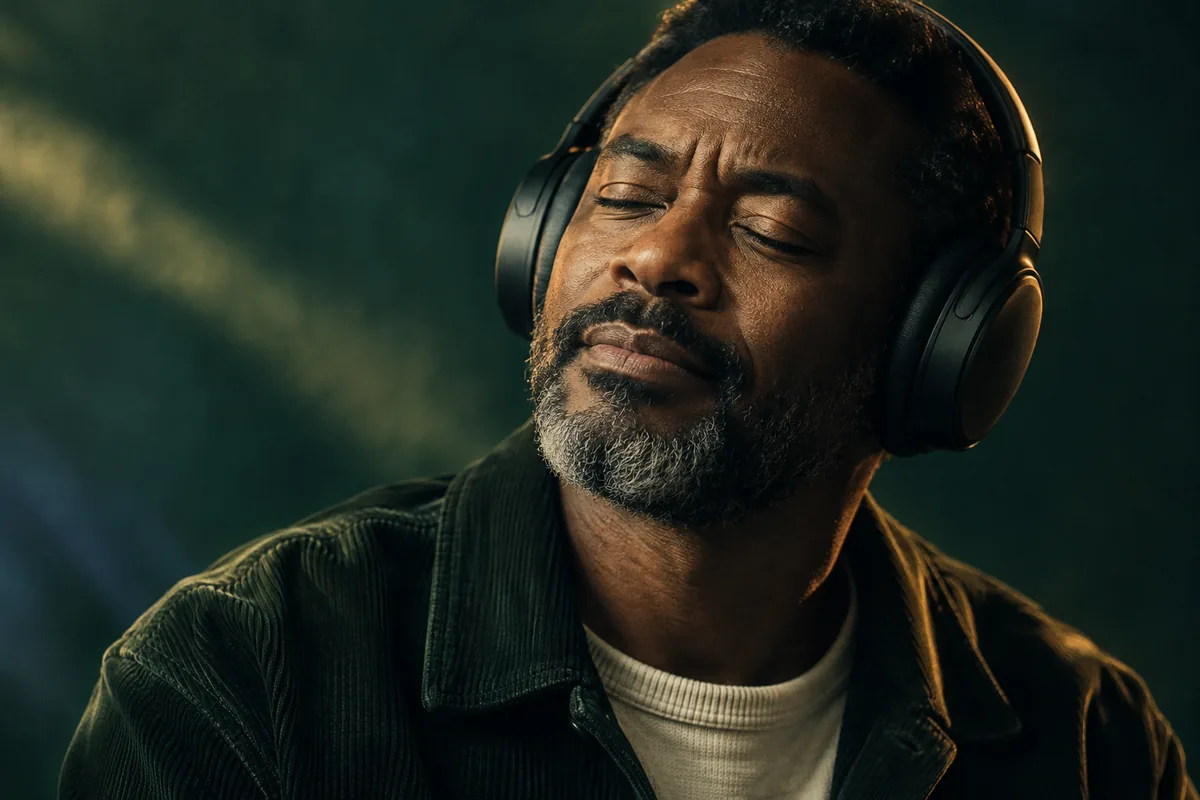

A thoughtful listener with eyes closed, headphones, and warm light against deep blue-green shadows

02 / KEEP THE FEELING

Listen for the delivery you want to keep.

The pause before a sentence matters as much as the sentence itself. With Voiceover Audio Enhancer, listen to the same passage in the original and enhanced versions, then judge the tone, quiet words, and consonants yourself.

Voiceover Audio Enhancer may change voice texture. Keep your original and choose the version that suits the story.

Compare your narration
Ivory and copper paper ribbons held apart above a dark green reflective surface

03 / BEFORE THE MIX

Start with the voice. Add the music later.

For a narrated video, process the separate spoken track before mixing in music. Voiceover Audio Enhancer focuses on speech, giving you a cleaned narration file to review before you build the rest of the soundtrack.

Voiceover Audio Enhancer does not separate stems; music already mixed with speech may be altered.

Clean a spoken track
A viewer in a vintage cinema, her face illuminated by a projector beam and a distant bright screen

04 / BACK TO THE STORY

Bring the voice back into the picture.

Download a WAV from Voiceover Audio Enhancer, then import it into the editor you already use for your video, lesson, or product walkthrough. Finish timing, music, and final levels there.

For video, export the audio first. Voiceover Audio Enhancer accepts audio files and returns audio, without editing your footage.

Prepare narration for your edit
A lone storyteller with a notebook walking along pale desert dunes toward the dawn

05 / THE WHOLE CHAPTER

Give the longer story a clear next step.

A course chapter or long-form explainer can outgrow a short take. Continue with Voiceover Audio Enhancer Pro for longer narration, with cloud processing and progress available in your account.

Voiceover Audio Enhancer shows the processing time before confirmation. Revisit the cloud task and download its result from your history.

Start with your narration

Choose. Enhance. Review.

How to use Voiceover Audio Enhancer

Voiceover Audio Enhancer keeps narration cleanup to three steps.

  1. 01

    Choose the spoken take

    Add MP3, WAV, M4A, or AAC to Voiceover Audio Enhancer. For a video project, export the spoken audio first.

  2. 02

    Enhance the narration

    Browser mode starts automatically. For Pro, review the required processing time and confirm the cloud task.

  3. 03

    Listen and download

    Compare both versions in Voiceover Audio Enhancer, download the WAV, and return to your edit.

Made for recorded narration

What are you putting a voice to?

YouTube & documentary narration

Use Voiceover Audio Enhancer on the spoken track before combining it with footage and music.

Courses & guided lessons

Clean the explanation learners will hear alongside slides, demonstrations, or screen recordings.

Product walkthroughs

Prepare existing narration for a demo, explainer, or launch video.

Stories & spoken chapters

Try Voiceover Audio Enhancer on a recorded passage before continuing with a longer chapter.

Why choose Voiceover Audio Enhancer?

A direct narration workflow

Voiceover Audio Enhancer handles speech cleanup without asking you to tune a chain of filters.

Your own listening decision

Original and enhanced playback in Voiceover Audio Enhancer let you judge whether the take works.

A file for your next edit

Download WAV from Voiceover Audio Enhancer and continue in your existing editor.

Before you enhance a take

Your voiceover questions, answered.

What narration suits Voiceover Audio Enhancer?

Voiceover Audio Enhancer is for existing spoken recordings: video narration, course lessons, explainers, and story chapters. Start with a separate voice track where possible. It does not generate speech from a script or clone a voice.

Can Voiceover Audio Enhancer fix a noisy or muffled take?

It reduces background noise and can improve speech clarity. Results depend on the recording. Heavy echo, severe clipping, overlapping voices, and missing words may remain unclear; enhancement cannot guarantee recovery of lost speech.

Will Voiceover Audio Enhancer keep my voice unchanged?

Enhancement may change tone or introduce artifacts. Compare quiet phrases and sharp consonants before using the result. Voiceover Audio Enhancer keeps both versions available for playback so you can decide what fits your delivery.

Should I include background music?

Use Voiceover Audio Enhancer on the separate narration before adding music when possible. It focuses on speech; music or singing may be altered. It does not isolate instruments, separate stems, or master a soundtrack.

Which files and output does Voiceover Audio Enhancer support?

Choose MP3, WAV, M4A, or AAC; codec support depends on your browser. Output is a 16-bit mono WAV: 16 kHz in free browser mode and 44.1 kHz in Pro. Original stereo and sample rate are not preserved.

Can I enhance narration from an MP4 or MOV video?

Export the spoken audio track in your video editor, process it with Voiceover Audio Enhancer, then import the downloaded WAV. Direct MP4/MOV upload and video export are unsupported. Adjust timing and the final mix in your editor.

Is Voiceover Audio Enhancer free, and how do longer files work?

Free browser mode accepts up to 10 minutes per file. Pro accepts up to 300 MB without a fixed duration limit. Packages are $4.99 for 20 minutes, $14.99 for 120 minutes, and $39.99 for 400 minutes. Purchased time never expires; charges round up to whole seconds with a 15-second minimum per job. Failed cloud jobs restore charged time.

View processing packages
Do I need an account, and do the modes produce the same result?

Voiceover Audio Enhancer browser mode needs no account and processes audio on your device. Pro requires sign-in and uploads audio for cloud processing with a different model. A free result is not a preview of the Pro output. Processing speed varies by recording length, device, and mode.

One recorded take is enough to start

Let your next story come through.

Bring your narration to Voiceover Audio Enhancer. Hear the result, keep what works, and take the enhanced WAV into your next edit.